

Working with Colors
This page explains how colors work in PixiEditor: how to choose a color, how to get back to colors you’ve used, how to keep sets of colors as palettes, and how to change colors in artwork you’ve already made.
Basics
Section titled “Basics”Primary and Secondary Color
Section titled “Primary and Secondary Color”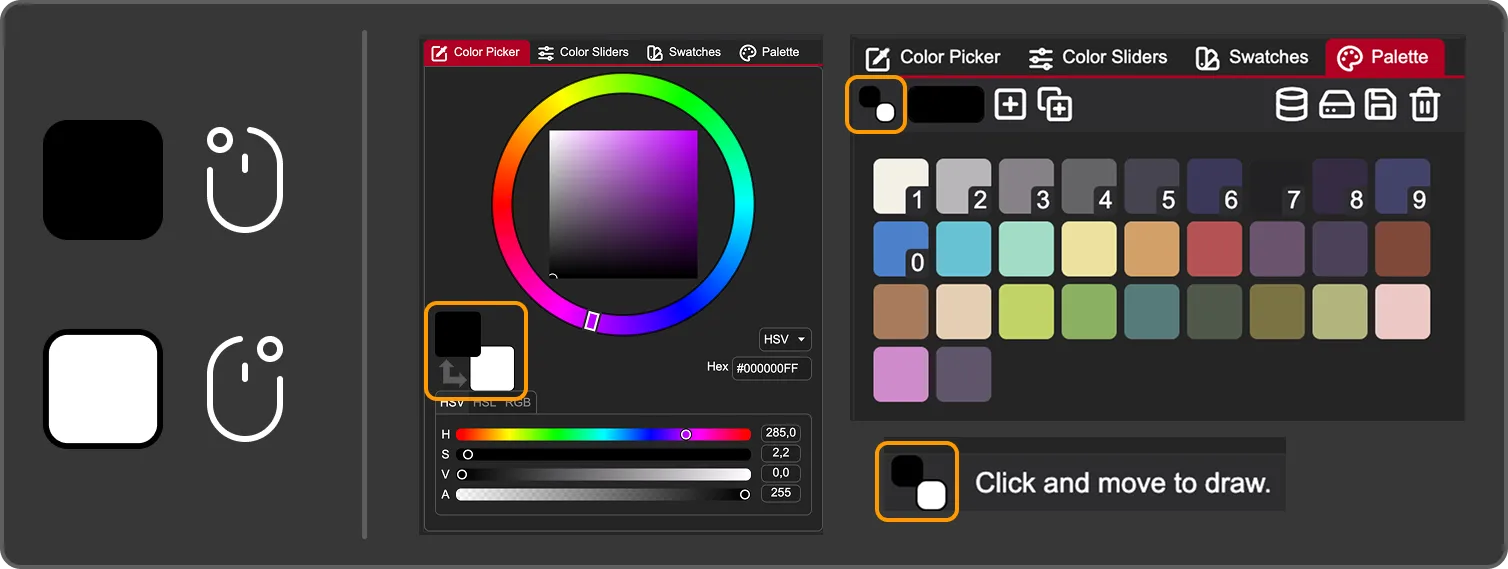
PixiEditor always has two active colors:
- The primary color is used with the left mouse button.
- The secondary color is used with the right mouse button.
Primary and secondary colors work the same way in every tool that uses color. For example, with the pen tool, click and drag using the left mouse button to draw with the primary color. Click and drag using the right mouse button to draw with the secondary color.
Keeping two colors ready lets you switch between them while drawing, without opening the color panel.
You can see both colors in the Color Picker tab, the Palette tab, and in the bottom bar. To swap them, press X (default shortcut).
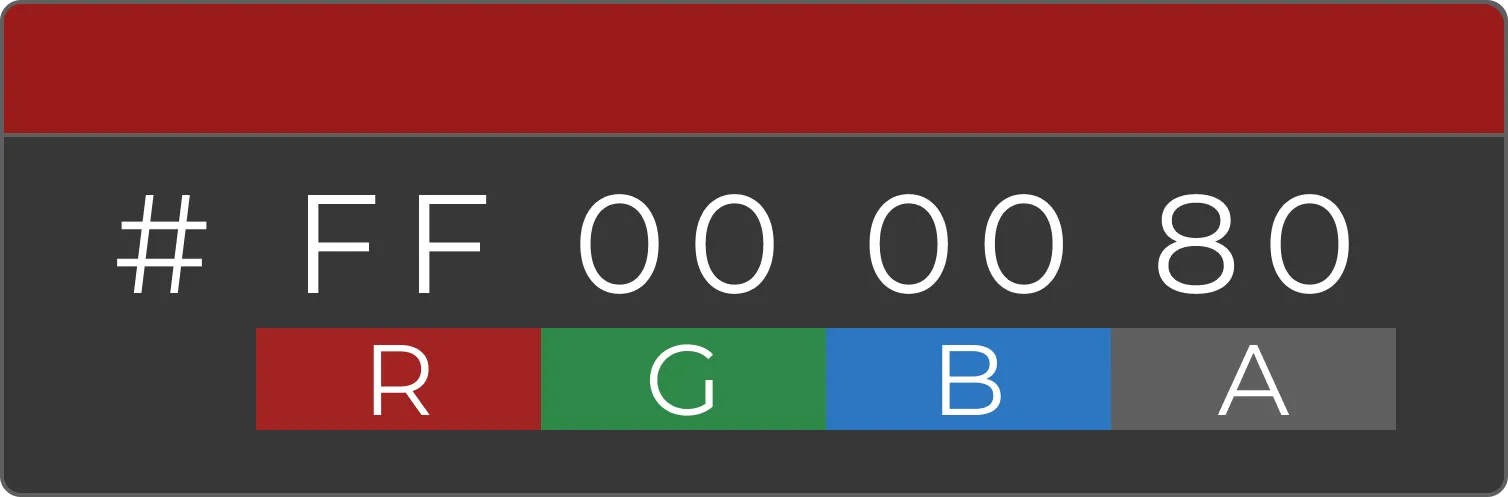
Hex color format in PixiEditor is RGBA: red, green, blue and alpha (transparency). In hex, this is written as #RRGGBBAA, where every pair of characters is one channel. For example, #FF000080 is red at 50% opacity.
Choosing a Color
Section titled “Choosing a Color”Let’s look at the color panel, by default located in the top right corner of the interface.
Color Picker
Section titled “Color Picker”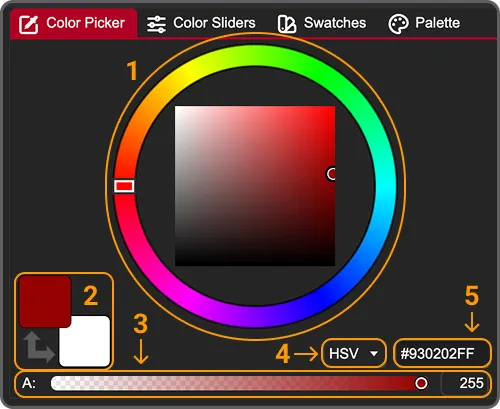
The main part of this tab is an HSV/HSL color picker made of a circular hue slider and a square for the other two values.
Elements in this tab are:
1. Color square and hue ring: Click or drag in the ring to choose the hue, and in the square to choose the other two values.
2. Primary and secondary color: The top square is the primary color and the one below is the secondary color. Clicking the arrow swaps the two (default shortcut: X).
3. Alpha slider: The wide slider at the bottom controls transparency. You can also type a value in the input on its right.
4. HSV/HSL dropdown: Switches the picker between HSV and HSL.
5. Hex value: Shows the current color in #RRGGBBAA format. You can use the input to type in a specific value.
Color Slider
Section titled “Color Slider”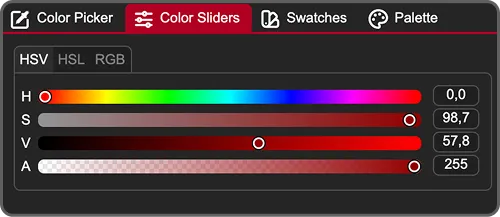
With these sliders, you change the primary color. It’s a set of HSV, HSL and RGB sliders, plus alpha. Every slider has an input next to it for typing exact values.
| Channel | Range |
|---|---|
| Hue | 0 - 360 |
| Saturation, Value, Lightness | 0 - 100 |
| Red, Green, Blue, Alpha | 0 - 255 |
Picking a Color From the Canvas
Section titled “Picking a Color From the Canvas”
The color picker tool copies a color from your artwork into your primary color (left click) or secondary color (right click). You will find it in all default toolsets. The default shortcut is O.
In the tool’s settings bar you can choose where the color is picked from:
Single Layerpicks the color from the active layer only, ignoring all other layers.Canvaspicks the color you see on the canvas, which is the result of all visible layers combined.
Reusing Colors
Section titled “Reusing Colors”Color Swatches
Section titled “Color Swatches”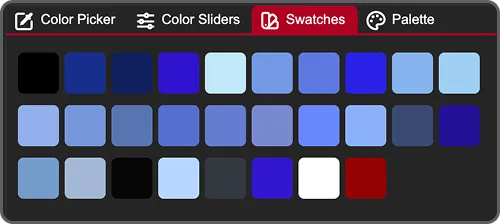
Using a canvas-editing tool (such as the pen, shapes, or bucket fill) automatically adds the color you used the swatches list.
Using non-editing tools like the color picker doesn’t add a swatch.
Swatches are great for returning to a color you used a moment ago. To keep colors for longer or organize them, use a palette.
Color Palette
Section titled “Color Palette”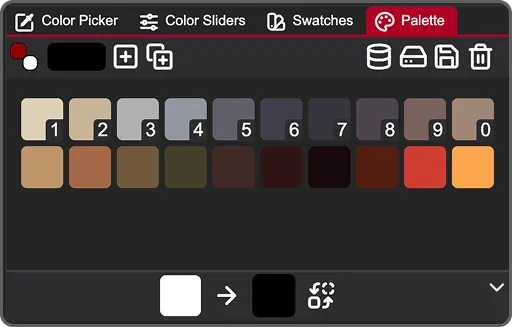
A color palette is a collection of colors that you can reuse across projects. Sticking to one palette keeps your artwork consistent. This tab lets you use and edit palettes.
Action Bar
Section titled “Action Bar”
- The two squares show current primary and secondary colors just like in the color picker
- The longer rectangle is for adding new colors to the color palette. It doesn’t change the primary color. Clicking on it opens a small color picker.
- - Adds selected color to the palette
- - Adds swatches to the palette
- - Opens the Palette Browser
- - Opens file manager to import a new palette from your drive.
- - Saves the palette to your drive
- - Deletes the current palette
Colors
Section titled “Colors”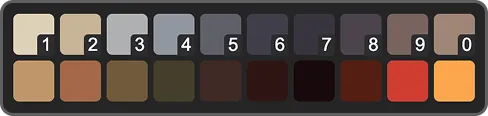
In the middle of the tab, you can see all colors of the palette.
- Click a color to set it as your primary color.
- Drag and drop colors to swap them.
- The first 10 colors have small numbers on them. These are shortcuts: press the corresponding number key (
1to0) to set that color as your primary color.
Color Replacer
Section titled “Color Replacer”
At the bottom of the tab, there is a panel for replacing colors. This is a global operation: it changes the color in your palette, and also repaints every pixel on your canvas that uses that color.
To replace a color:
- Drag the color you want to change from your palette into the left rectangle.
- Click the right rectangle to choose the replacement color.
- Click the swap icon to apply the change.
Quick palette color picker
Section titled “Quick palette color picker”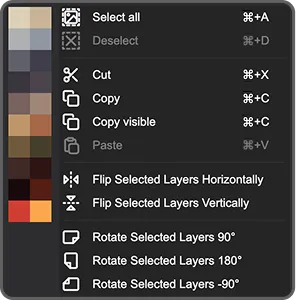
While using any tool that doesn’t draw on the canvas (move, rotate, etc) you can right click anywhere in the viewport to open a context menu. If you have an active palette, on the left side you will find a palette color list. Use it to quickly change your primary color.
Palette Management
Section titled “Palette Management”Palette Browser
Section titled “Palette Browser”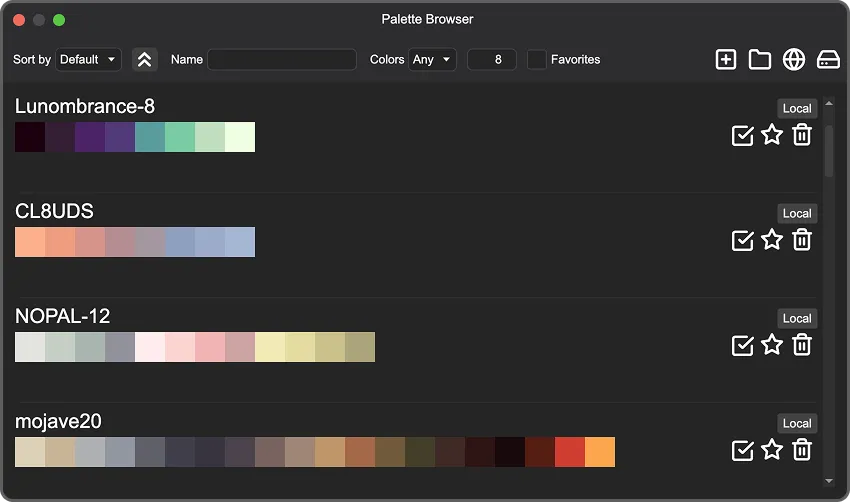
Palettes on the screenshot imported from Lospec
The Palette Browser is a library of every palette stored in PixiEditor, both the ones you created and the ones you downloaded. Open it with the browser button in the Palette action bar.

At the top you can find following options:
- Sorting by:
Default/Alphabetical/Color Count - / - Toggle to switch between ascending and descending order
- Search bar to look up by name
- Filtering by the number of colors in a palette. First you can choose an option from a dropdown
Any/Max/Min/Exactand type in a number in the input on the right. - Option to see only your favorite palettes on the list.
- - Adds your current palette to the browser
- - Opens palette directory in your file manager
- - Opens Lospec palette list
- - Opens file manager to import a new palette from your drive

Actions you can take with each palette on the list:
- Rename a palette by double clicking its name or hover over the name and click
- - Use palette for your current file
- - Add palette to favorites (it will go to the top of the list)
- - Delete a palette
Getting Palettes
Section titled “Getting Palettes”Lospec
Section titled “Lospec”
Lospec is a popular pixel art platform with a large palette database. You can import a palette with one click using the Open In App... button on the site.
From a file
Section titled “From a file”Click the import icon in the action bar and choose a palette file from your drive.
Manually
Section titled “Manually”You can also copy palette files into PixiEditor’s palettes folder. To open the folder click this icon in the action bar in the browser.
Or use a direct path:
- Windows
C:/Users/<your user name>/AppData/Roaming/PixiEditor/Palettes - Linux
/home/<your user name>/.local/share/PixiEditor/Palettes - macOS
/Users/<your user name>/Library/Application Support/PixiEditor/Palettes
Supported Color Palette Formats
Section titled “Supported Color Palette Formats”as of version 2.1.2.4
| Name | Open | Save |
|---|---|---|
| Cls | yes | yes |
| Jasc Palette .pal, .psppalette | yes | yes |
| CorelDraw .pal | yes | yes |
| DeluxePaint .bbm, .lbm | yes | no |
| Gimp GPL .pal | yes | yes |
| Hex | yes | yes |
| Paint.NET Palette .txt | yes | yes |
| Pixi | yes | no |
| Png | yes | yes |
Saving a Palette
Section titled “Saving a Palette”The active palette is saved within the .pixi file, but if you want to reuse it across files, you can:
- Save it to your drive by clicking . Check what formats are supported in the table above.
- Go to Palette Browser and add your current palette to the browser by clicking . It automatically creates a
.palfile in thePixiEditor/Palettesfolder.
Changing Colors on Canvas
Section titled “Changing Colors on Canvas”Besides the Color Replacer, you have a few more options:
- The Adjustments toolset has tools for color, exposure and image corrections.
- If you work with the Node Graph, there are color-related nodes such as Palette, Decompose Palette, Color Map, Color Ramp and Posterize.
All of our content is carefully written by hand, no AI was involved during the process.